
Summary
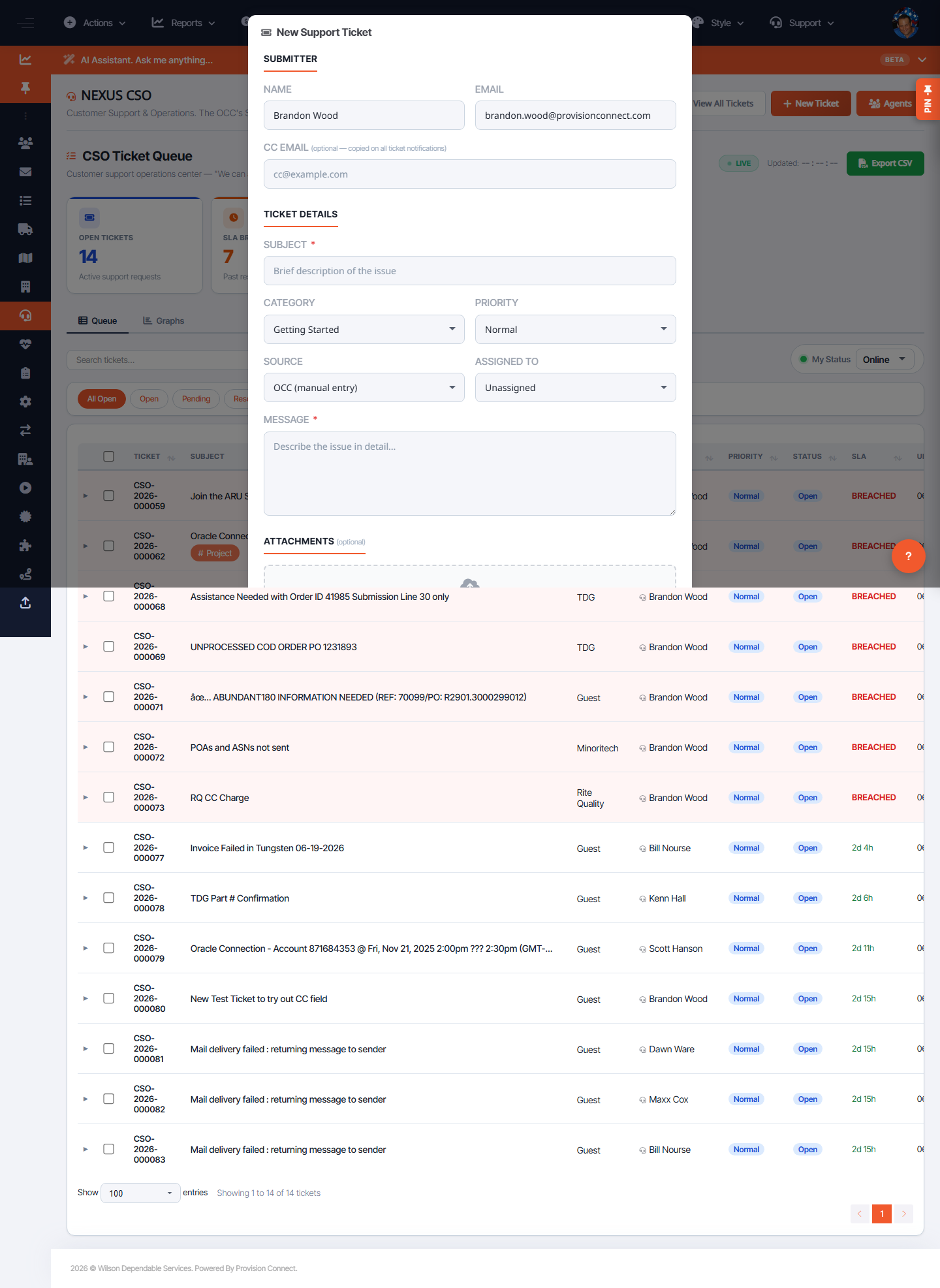
Create a support ticket from the New Ticket page or the "Add New Support Ticket" button available throughout the OCC. Fill in the requester and issue details, set priority and source, optionally assign an agent, and submit.
Before you start
- Required role: Admin or Support Agent
- Know the requester's name/email and a short description of the issue
Steps
- Open New Ticket (
/cso.cfm?new=1) or click Add New Support Ticket in the top bar. - Enter Name and Email of the requester.
- Enter a Subject (required) and Message (required). _(Fields: "Subject *", "Message *")_
- Set Category, Priority, and Source. _(Fields: Category, Priority, Source)_
- Optionally set Assigned To to route it to a specific agent.
- Click Create Ticket.
What success looks like
The ticket appears in the Queue with the chosen priority and status, and an SLA timer begins.
Gotchas / troubleshooting
- Leaving Assigned To blank puts the ticket in the general queue for triage.
- Source records where the request came from (e.g. email, phone) — set it for accurate metrics.
Related
- Work the support ticket queue