
Summary
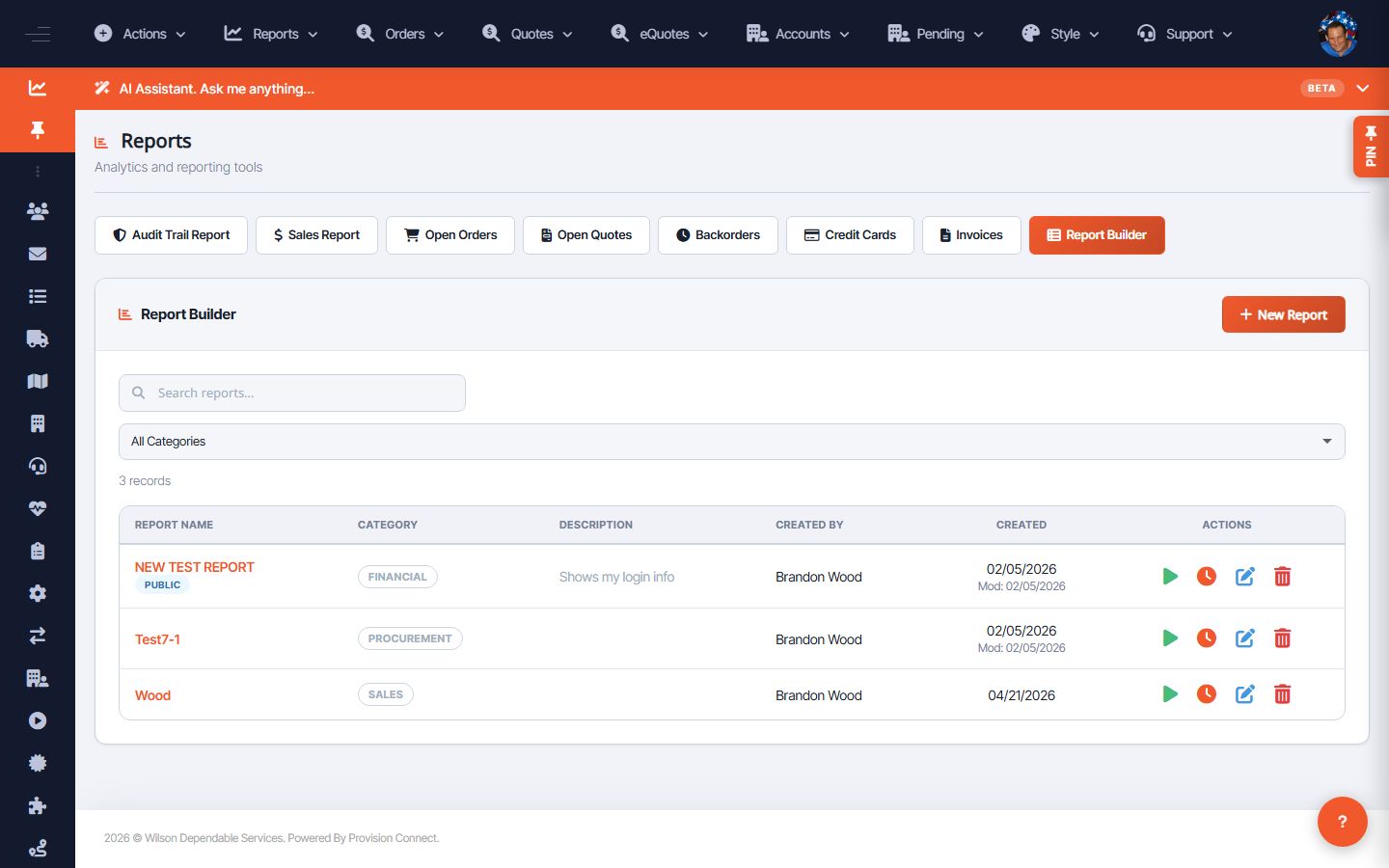
Many OCC lists and reports offer an Export CSV button to download the current data — for example the Tenant/Clients list and the CSO ticket queue. Filter first, then export to get exactly the rows you need.
Before you start
- Required role depends on the screen (Admin/Reseller Admin/Support Agent)
Steps
- Open the list or report you want (e.g. Active Clients at
/tenants.cfm, Ticket Queue at/cso.cfm, or a report under Reports). - Apply any filters so the on-screen data is what you want.
- Click Export CSV.
- Open the downloaded file in Excel or your tool of choice.
What success looks like
A CSV downloads containing the filtered rows currently shown.
Gotchas / troubleshooting
- Export reflects the active filters — if rows are missing, widen the filter before exporting.
Related
- Run reports and build custom reports
- Manage tenants / client analytics