
Summary
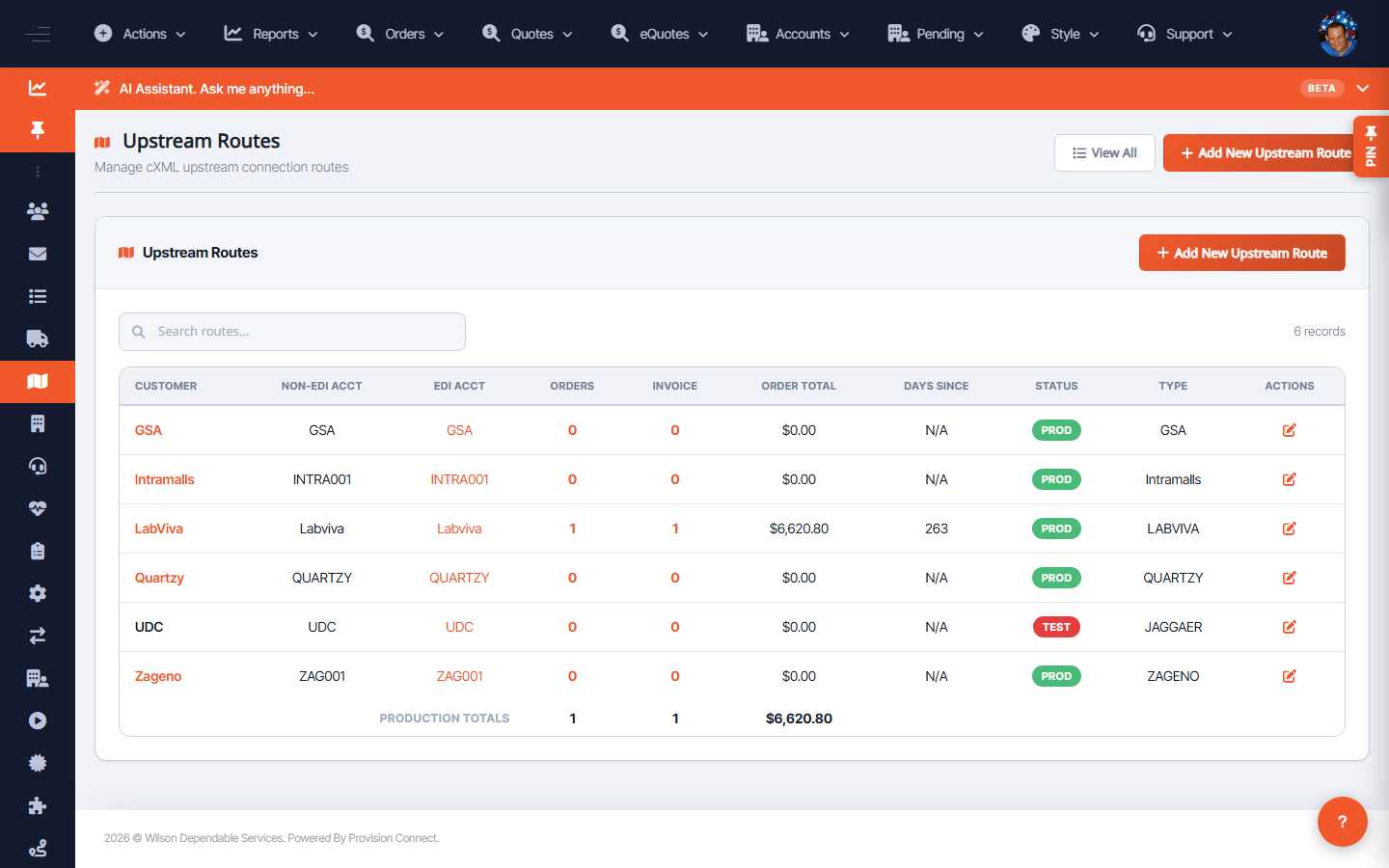
Upstream Routes shows, per customer, how orders flow upstream to suppliers — including the customer's Non-EDI and EDI account numbers, order/invoice counts, order totals, days since last activity, status, and route type. Use it to confirm a customer is routed correctly and to spot stalled accounts.
Before you start
- Required role: Admin
Steps
- Go to Upstream Routes (
/route.cfm?route_view=1). _(Columns: Customer, Non-EDI Acct, EDI Acct, Orders, Invoice, Order Total, Days Since, Status, Type, Actions)_ - Find the customer and check the Type (EDI vs non-EDI) and Status.
- Use the row Actions to edit the customer's route or account numbers.
- Watch Days Since to catch customers whose upstream flow has gone quiet.
What success looks like
Each active customer shows the correct EDI/non-EDI account and a recent "Days Since" value, confirming orders are reaching the supplier.
Gotchas / troubleshooting
- A high "Days Since" with open orders can indicate a broken EDI route — cross-check the EDI document funnel.
- A customer with only a Non-EDI account won't transmit EDI documents even if the supplier supports them.
Related
- Manage suppliers and their account connections
- View the EDI document funnel