
Summary
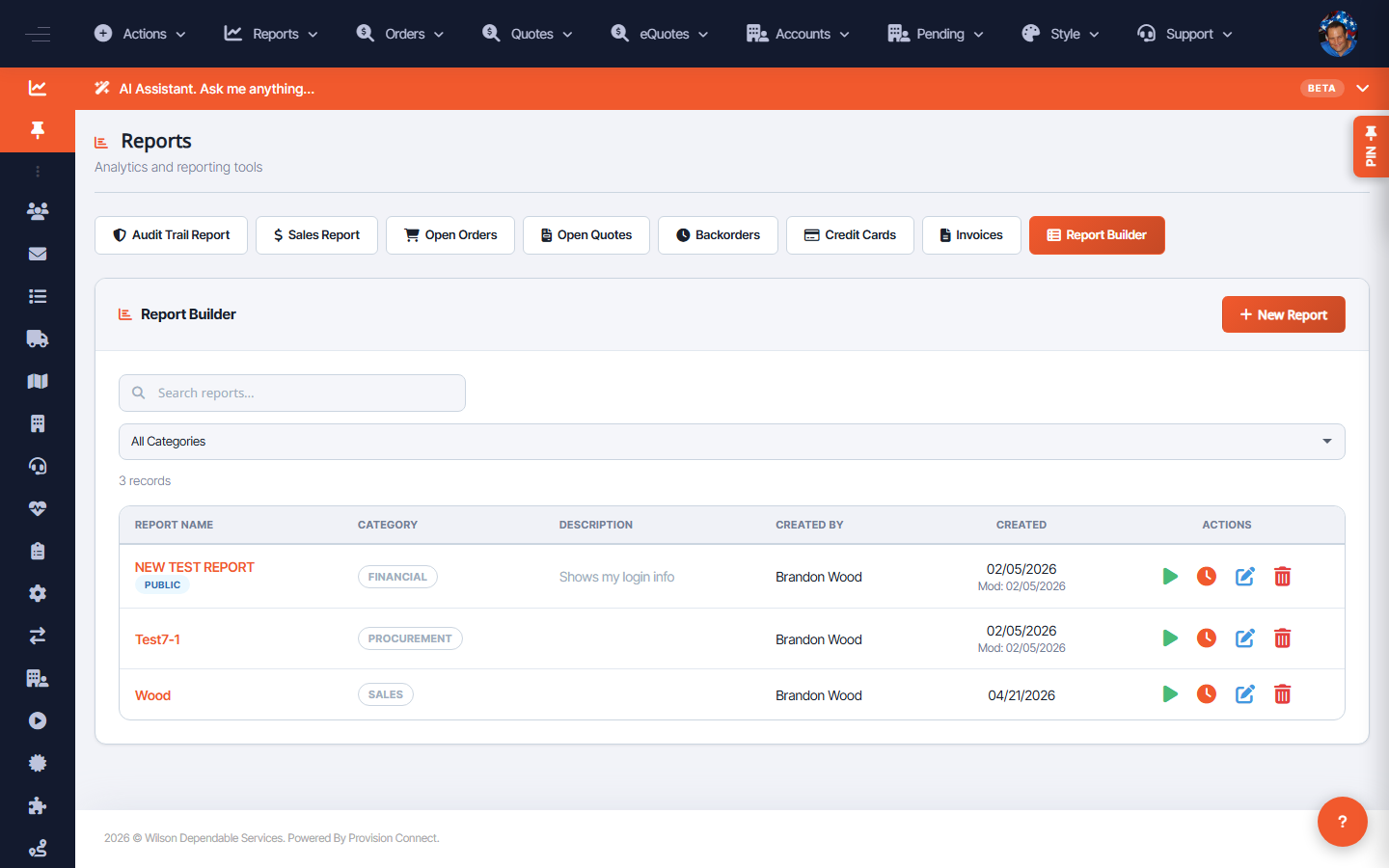
The Reports area groups reporting into Sales Reports, Invoice Reports, a Report Generator, and Other Reports. A Report Builder lets you create, save, and re-run custom reports (with name, category, description, and creator tracked).
Before you start
- Required role: Admin (or Reseller Admin)
Steps
- Open Reports from the top Reports menu, or go to the Report Builder (
/reports.cfm?view_reports=1). - Pick a standard report by its menu entry:
- Audit Trail (
reports.cfm?audit_reports=) - Sales Report (
reports.cfm?sales_reports=) - Open Order Report (
reports.cfm?openorder_reports=) - Open Quote Report (
reports.cfm?openquote_reports=) - Credit Card Report (
reports.cfm?credit_card_report=) - Find Invoices (
reports.cfm?invoice_reports=) - Backorder Reports (
reports.cfm?backorder_reports=) - Support Reports (
reports.cfm?support_reports=) - Admin Traffic Report (
reports.cfm?traffic_report=)
- Set the report's date range and filters, then run it.
- To make a reusable report, use Report Builder, configure it, and Save (it's stored with name/category/description).
What success looks like
The report returns matching rows for your filters; saved custom reports appear in the Report Builder list to re-run later.
Gotchas / troubleshooting
- Each standard report has its own filter set — an empty result usually means the date range or account filter is too narrow.
Related
- Export a report to CSV
- Manage tenants / client analytics