
Summary
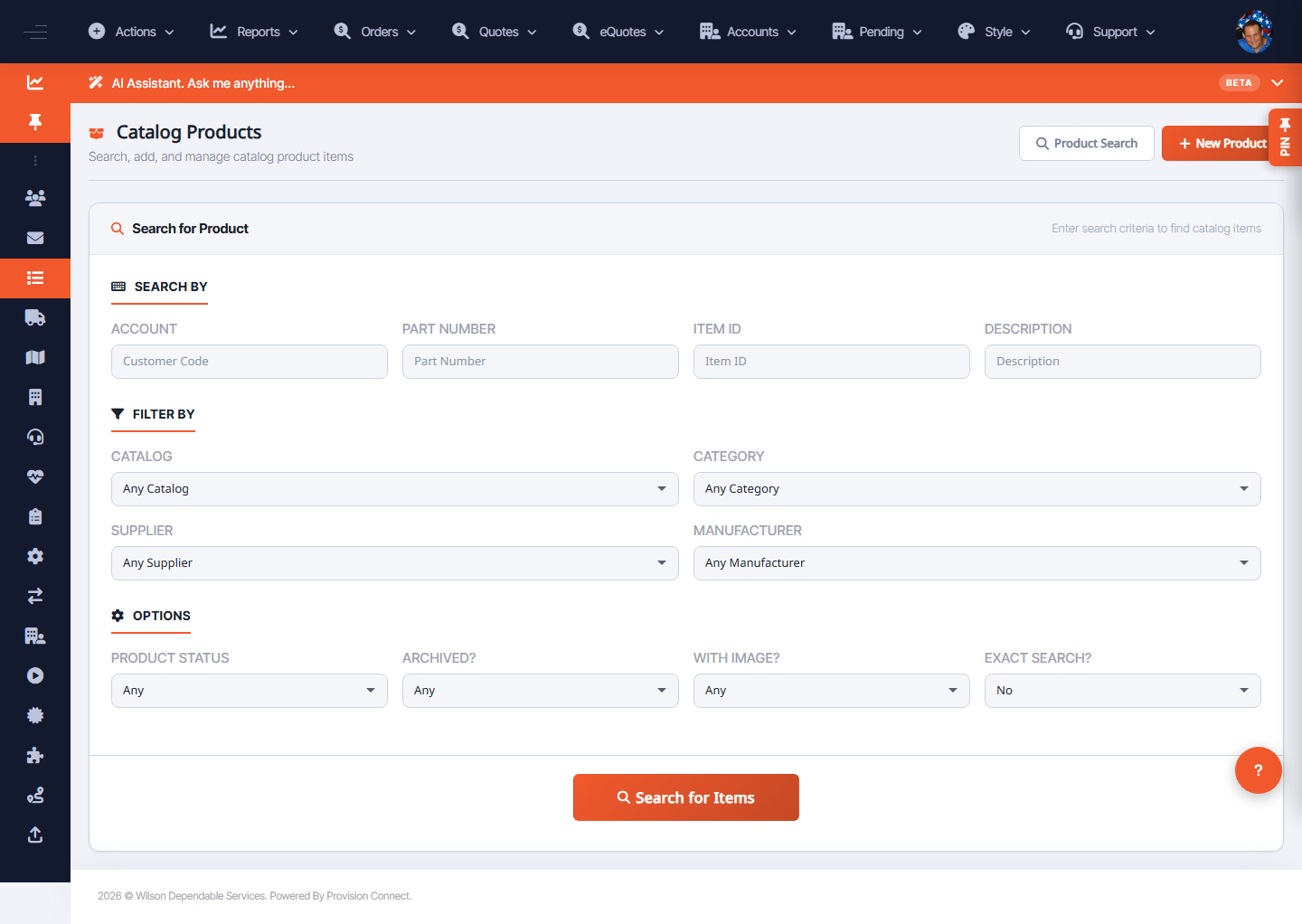
Use the Catalog Products screen to search items across catalogs with detailed filters, then copy, move, edit, or delete the results in bulk. This is the main workspace for curating what buyers can find and order.
Before you start
- Required role: Admin or Catalog Manager
- Know at least one search filter (part number, description, catalog, supplier, etc.)
Steps
- Go to Products (
/product.cfm?product_view=1). - Set any of the search filters: Account, Part Number, Item ID, Description, Catalog, Category, Supplier, Manufacturer, Product Status, Archived?, With Image?, Exact Search?.
- Click Search for Items. _(Results list matching products)_
- Select items, then use a bulk action:
- Copy Here / Copy To… — duplicate items into the current or another catalog.
- Move To… — relocate items to a different catalog.
- Save Changes — apply inline edits.
- Delete — remove items.
What success looks like
The result set reflects your filters, and bulk actions report success (items copied/moved appear in the destination catalog; deleted items leave the list).
Gotchas / troubleshooting
- Use Exact Search? to avoid broad partial matches on common part numbers.
- Archived? and Product Status filters let you find disabled/retired items that are hidden from buyers.
- Moving items between a Supplier Catalog and a Custom Catalog changes how they're priced (supplier markup vs. custom) — confirm pricing after a move.
Related
- View and manage hosted catalogs
- Run the Grainger enrichment pipeline