
Summary
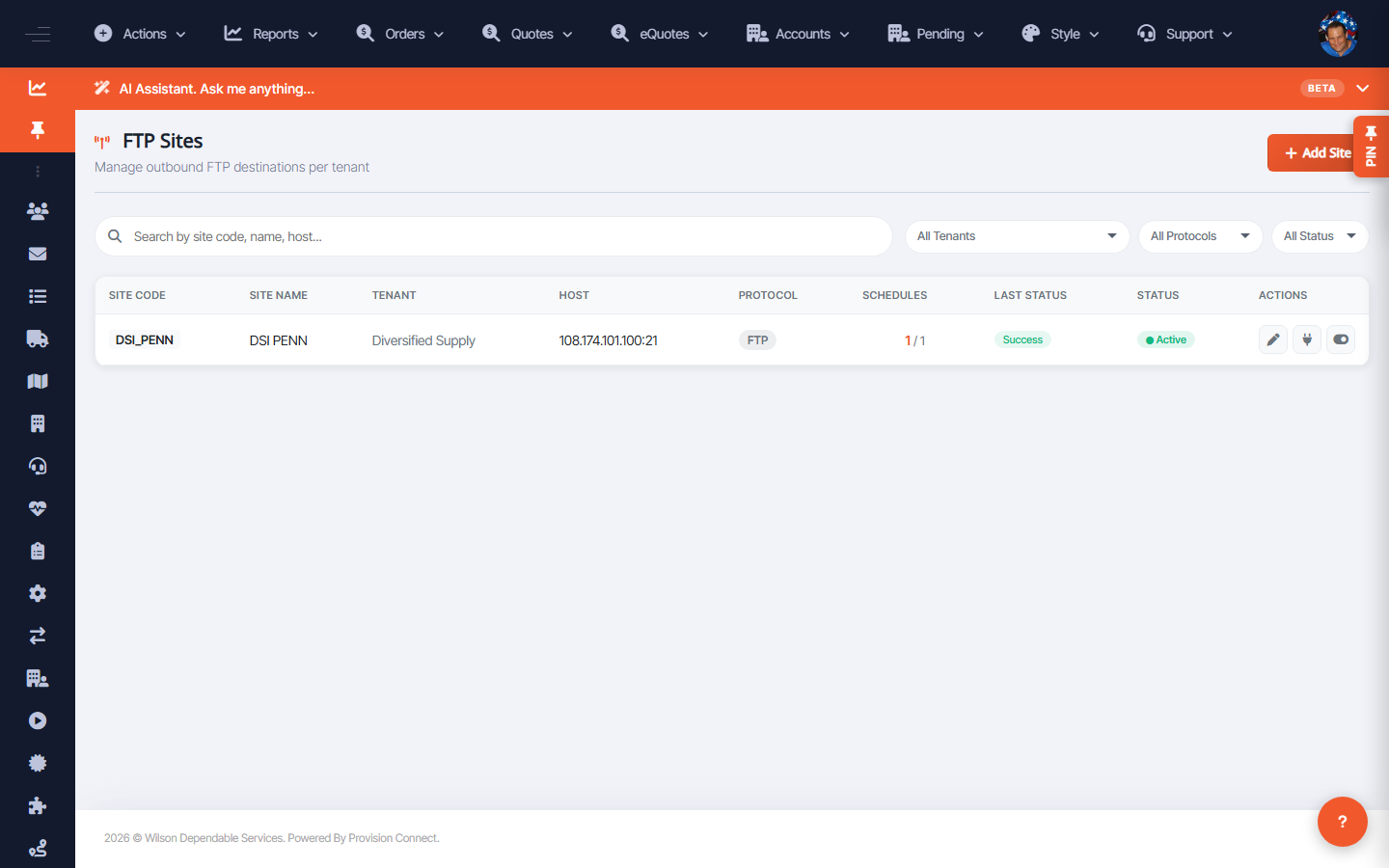
FTP Sites are the outbound destinations files are transferred to, configured per tenant. Each site has a code, name, tenant, host, protocol, and status. Filter the list and use Add Site to create a new destination.
Before you start
- Required role: Admin
- Have the destination host, protocol, and credentials from the trading partner
Steps
- Go to FTP Services ? Sites (
/ftp.cfm?view=sites). _(Columns: Site Code, Site Name, Tenant, Host, Protocol, Schedules, Last Status, Status, Actions)_ - Filter by Tenant, Protocol (FTPS Explicit, FTPS Implicit, SFTP, FTP Legacy), or Status.
- Click Add Site to create a destination; fill in code, name, tenant, host, protocol, and credentials.
- Use row Actions to edit a site or toggle its status.
What success looks like
The site appears in the list with the correct protocol and an Active status; once a schedule points to it, transfers begin appearing on the Departures Board.
Gotchas / troubleshooting
- Prefer SFTP or FTPS over FTP (Legacy) where the partner supports it — legacy FTP is unencrypted.
- A site with schedules but a failing Last Status usually means a host/credential or firewall problem, not a schedule problem.
Related
- Manage FTP schedules
- Monitor FTP transfers on the Departures Board