
Summary
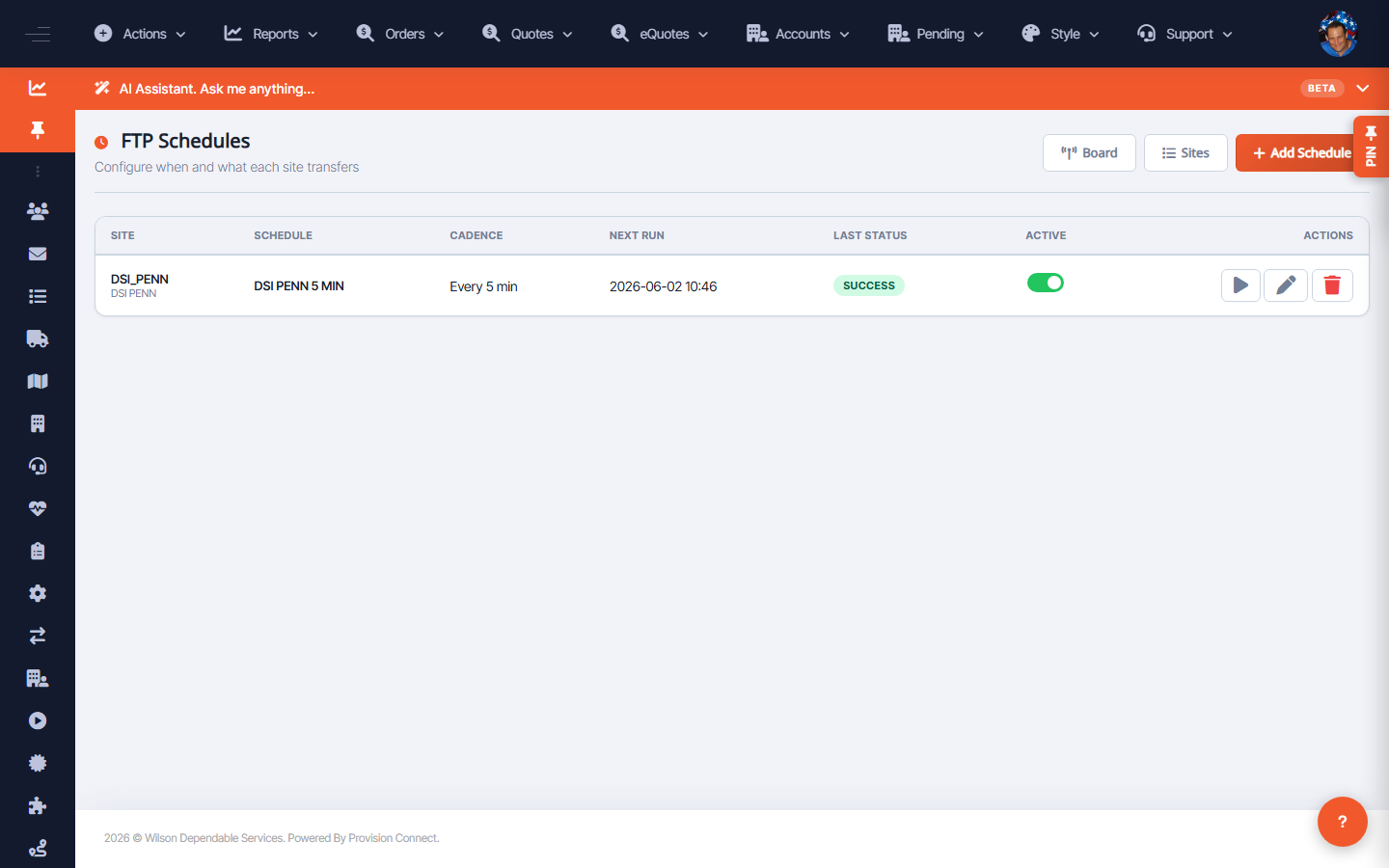
FTP Schedules define when and what each site transfers. Each schedule shows its site, cadence, next run, last run, status, and active flag. Use Add Schedule to automate a recurring transfer.
Before you start
- Required role: Admin
- The destination Site must already exist (see Manage FTP sites)
Steps
- Go to FTP Services ? Schedules (
/ftp.cfm?view=schedules). _(Columns: Site, Schedule, Cadence, Next Run, Last, Status, Active, Actions)_ - Click Add Schedule.
- Choose the Site, name the schedule, set the cadence (e.g. every 5 minutes), and what files it moves.
- Save, and confirm the schedule shows the expected Next Run.
- Use the Active toggle to pause/resume, or row Actions to edit.
What success looks like
The schedule lists a future Next Run and, after it fires, a Last time with SUCCESS status; the run also appears on the Departures Board.
Gotchas / troubleshooting
- A schedule with no recent Last run despite a due Next Run is likely paused (Active off) or pointed at a failing site.
- Very frequent cadences (e.g. every 5 min) multiply load — use the longest interval that meets the partner's needs.
Related
- Add and manage FTP sites
- Monitor FTP transfers on the Departures Board