
Summary
Use the Restriction Engine to stop buyers from purchasing any item classified under a chosen UNSPSC code. Build a rule scoped to one account (and optionally one catalog), add the codes to block, and save. Blocks apply across hosted catalogs and punchouts.
Before you start
- Required role: Admin or Catalog Manager
- You'll need the account the rule applies to (e.g. GSA, Wilson Dependable Services)
- You'll need the UNSPSC code(s) you want to block (searchable in the picker)
Steps
- Go to Restriction Rules (left nav, or
/restriction_rules.cfm). - Click New Rule. _(top-right; opens
restriction_rules.cfm?rule_add=1)_ - Choose the Account the rule applies to. _(Field: "ACCOUNT *", required)_
- Set Catalog Scope to All catalogs or Specific catalog. _(Field: "CATALOG SCOPE")_
- Enter a Rule Name and optional Notes. _(Fields: "RULE NAME *", "NOTES")_
- Leave Active on so the rule takes effect immediately. _(Toggle: "ACTIVE")_
- Set Logic Mode to UNSPSC Only. _(Other modes: Keyword Only, UNSPSC or Keyword, UNSPSC and Keyword)_
- In the UNSPSC Codes dual-list, search the Available column and move each code to the Restricted column. Use Load more results to page through matches. _(Counter shows how many codes are blocked)_
- Click Save Rule. _(Expected result: returns to the rules list with the new rule shown Active)_
What success looks like
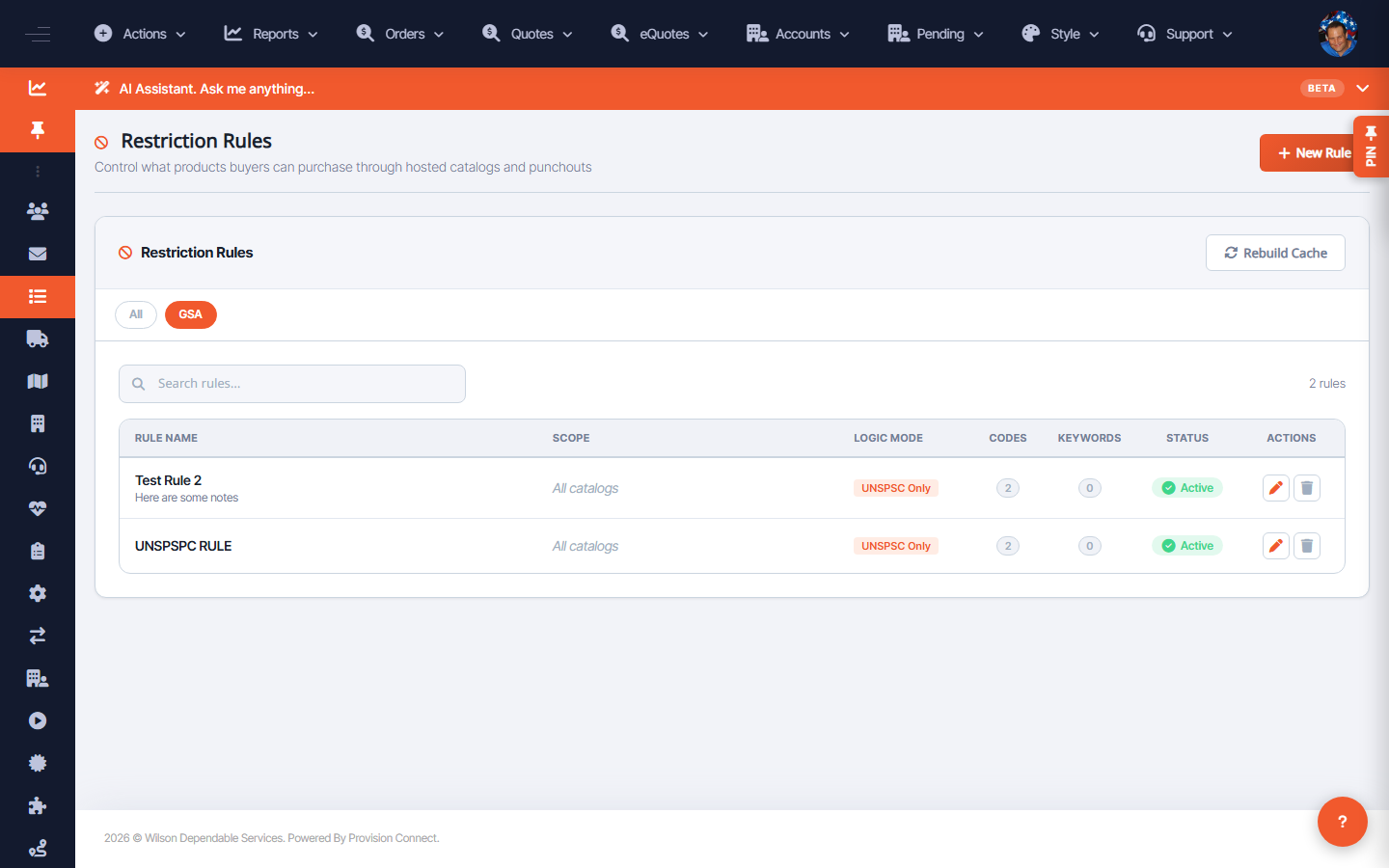
The rule appears in the Restriction Rules table with Logic "UNSPSC Only", the blocked code count, and status Active. Buyers on that account can no longer add matching items to cart, and matching items are hidden from catalog/punchout results.
Gotchas / troubleshooting
- A restriction does not retroactively cancel existing open orders.
- Logic modes stack the way you choose: "UNSPSC and Keyword" only blocks when both match (keyword refines the code); "UNSPSC or Keyword" blocks if either matches.
- If blocked items still appear to buyers, run Rebuild Cache on the rules list — the engine serves from a precomputed restriction link cache.
- If items still appear after a cache rebuild, confirm the catalog item actually carries that UNSPSC code.
Related
- Block purchases by keyword
- Manage / activate / delete restriction rules
- Rebuild the restriction cache