
Summary
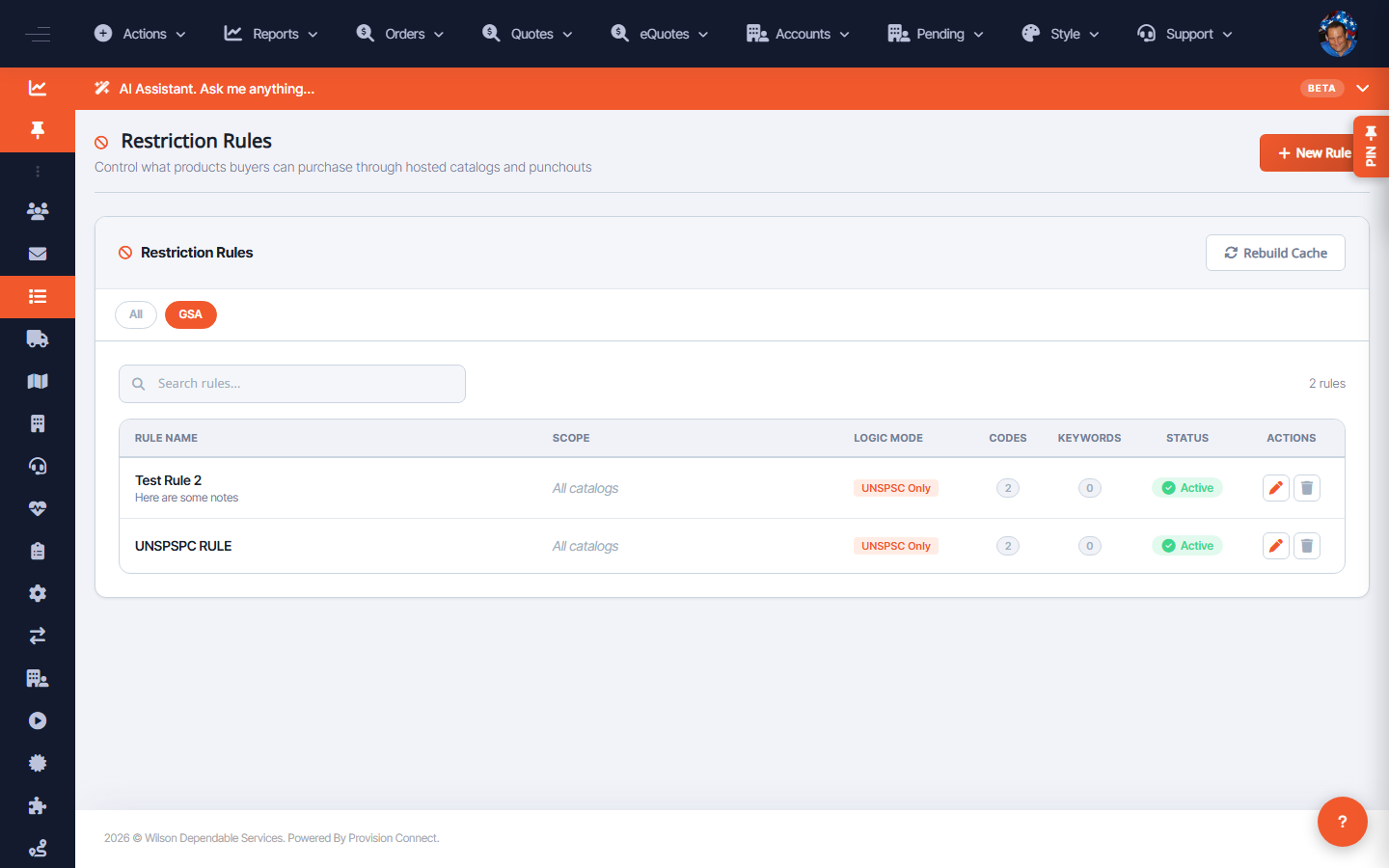
The Restriction Rules list shows every rule for the account with its scope, logic mode, blocked-code and keyword counts, and status. From here you can activate/deactivate, edit, or delete any rule, and filter the list by book.
Before you start
- Required role: Admin or Catalog Manager
Steps
- Go to Restriction Rules (
/restriction_rules.cfm). - Use the All / GSA buttons to filter by book, or the Search rules… box to find a rule by name. _(Columns: Rule Name, Scope, Logic, Mode, Codes, Keywords, Status, Actions)_
- To turn a rule on or off, click its status toggle. _(Button: "Click to deactivate" / activate)_
- To change a rule, click Edit in its Actions column. _(Opens
restriction_rules.cfm?rule_edit=1&rule_id=<id>)_ - To remove a rule, click Delete and confirm.
What success looks like
The rule's status reflects your change immediately in the table; edited rules keep their place with updated counts; deleted rules disappear from the list.
Gotchas / troubleshooting
- Deactivating is reversible and safer than deleting if you only need to pause a policy.
- After bulk changes, run Rebuild Cache so buyer-facing catalogs reflect the new state.
Related
- Block purchases by UNSPSC code
- Block purchases by keyword
- Rebuild the restriction cache