
Summary
Block items by matching words in the product text rather than by category code. Create a rule with Logic Mode set to a keyword option, add the words to ban, and save. Useful when no clean UNSPSC code covers what you want to stop.
Before you start
- Required role: Admin or Catalog Manager
- Know the account the rule applies to
- Have your list of keywords ready (you can paste many at once)
Steps
- Go to Restriction Rules (
/restriction_rules.cfm) and click New Rule. - Select the Account, set Catalog Scope, and enter a Rule Name.
- Set Logic Mode to Keyword Only (or UNSPSC or Keyword / UNSPSC and Keyword to combine with codes). _(Field: "Logic Mode")_
- In the Keywords box, type a word and press Enter or comma to add it. To add many at once, paste a list — one per line, or comma/semicolon/tab separated. _(Field: "Keywords")_
- Click Save Rule.
What success looks like
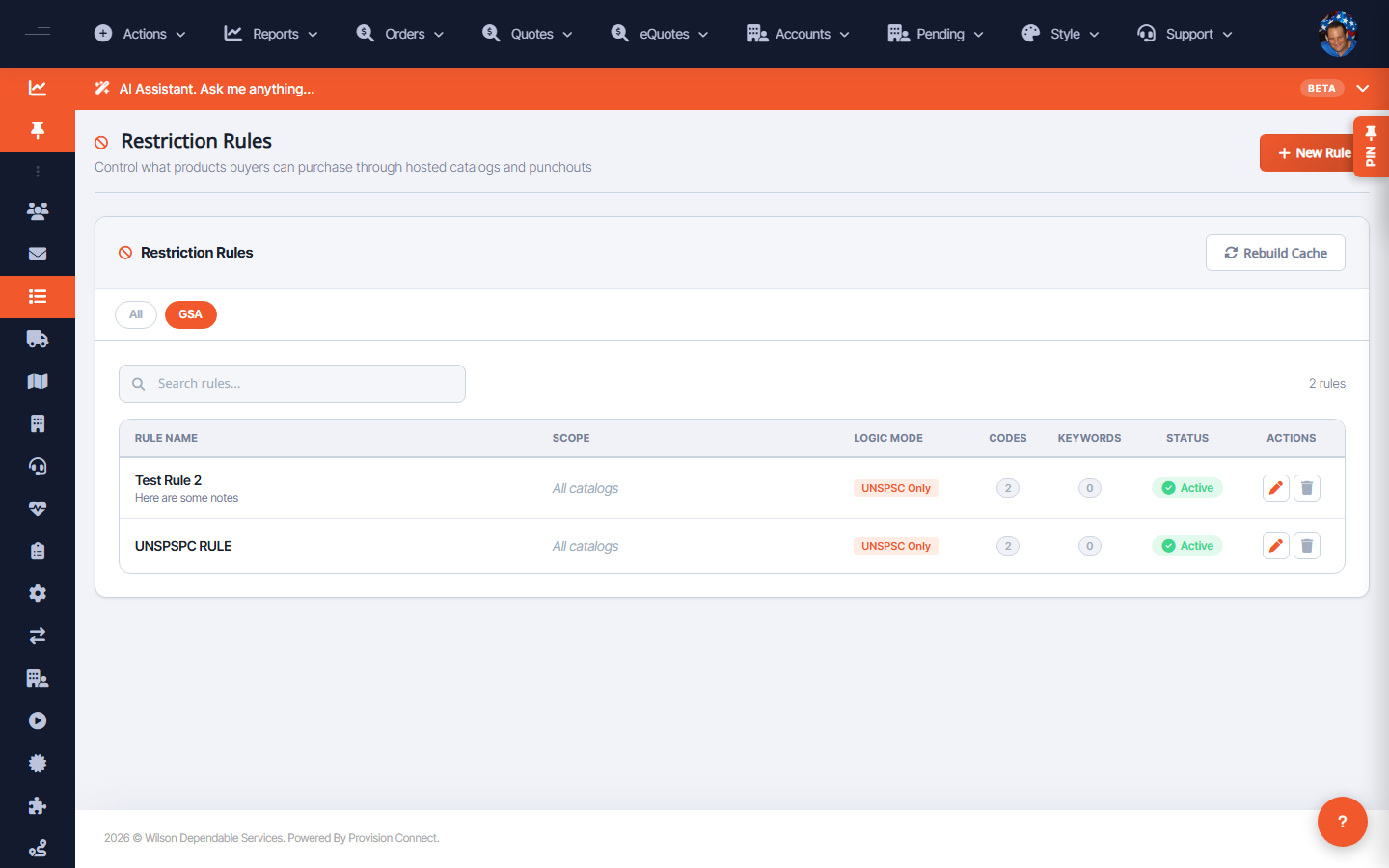
The rule appears in the list showing a non-zero Keywords count and status Active. Buyers on that account can no longer add items whose text matches the banned words, and those items drop out of catalog/punchout results.
Gotchas / troubleshooting
- "UNSPSC and Keyword" blocks only when both the code and a keyword match — the keyword refines the code rather than widening the block.
- Keyword matching is broad; test with a real buyer search to avoid over-blocking.
- If changes don't show for buyers, use Rebuild Cache.
Related
- Block purchases by UNSPSC code
- Manage / activate / delete restriction rules